

“I can’t get in.”
Someone forgot a password again. You drop what you’re doing to sort it out.
For businesses where IT became somebody’s second job
We build your Microsoft 365 and run it, plus as much of the rest as you want. Instant AI help, and a real person within 10 minutes ($35 a ticket).
Sound familiar?
“I can’t get in.”
Someone forgot a password again. You drop what you’re doing to sort it out.
“Can you set it up like the others?”
None of the others match. Each one was set up by a different person, in a different year.
“Which logins did she have?”
Nobody knows for sure. The list lives in someone’s head, or nowhere.
“I asked for help on Tuesday.”
No answer yet. Nobody can say where the request went, so you chase it.
None of this is your fault. The setup grew one purchase at a time, and nobody was ever asked to own all of it.
Why help stays rare
On the Baseline setup, nobody has a password, and nothing installs without a manager’s one-time code. The more you use, the more the AI fixes on the spot, and the fewer requests become $35 tickets.
With no password, there’s nothing to forget, reset, or be tricked into sharing. If someone gets stuck, a manager can resend their sign-in setup from the Manager Portal.
The one-time code works once, and it changes about an hour later. That pause is on purpose.
This doesn’t stop every scam or every bad program. It makes many of them much harder, and many of those problems never happen.
Every customer gets a Microsoft 365 account we build, for email and sign-in. The rest is optional. Your own apps still get help, usually from a person as a $35 ticket.
Part 1 · Signing in
Each person gets one company sign-in for email, files, apps, and their computer. They use their face, fingerprint, or a PIN. When someone’s locked out, a manager starts the reset in the Manager Portal.
The sign-in lives on a phone or computer the person already has. Before their first day, a new hire gets a text that walks them through setup on their phone, at home, in a few minutes.
One sign-in opens everything. So you have one place to give access, and one place to turn it off when someone leaves.
Password rules didn’t make people safer. We’d rather remove the whole problem than keep managing it. And when a client or insurer asks how your people sign in, you’ll have a clear answer.
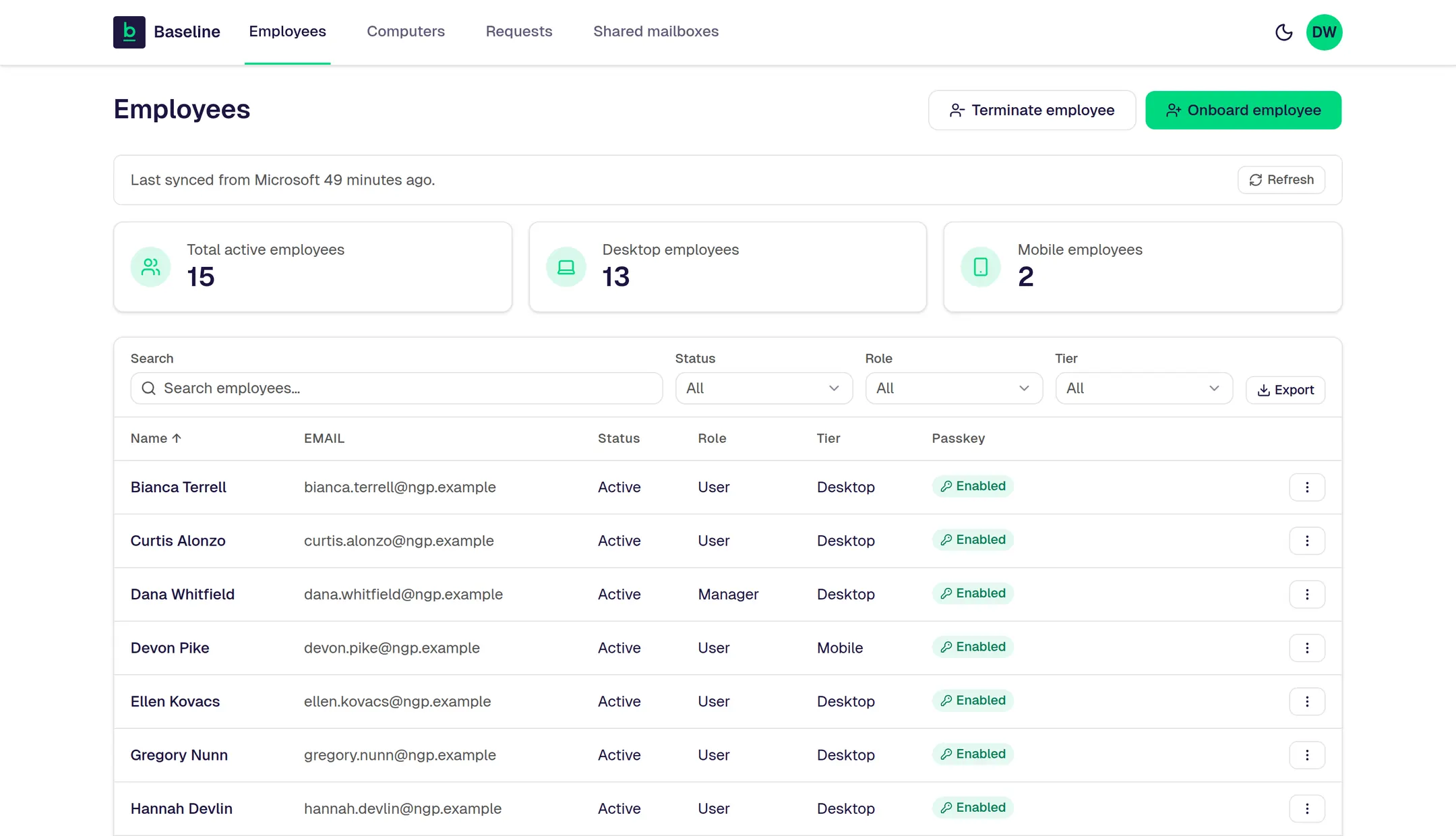
The real Manager Portal. The company and people shown are made up.
Part 2 · Computers
A company computer gets wiped clean, the employee signs in, and it sets itself up. The Computer Readiness Guide shows you how to tell which computers are ready for it.
The same Windows setup, safety settings, and software rules reach every computer we look after from one place. They arrive by themselves when the computer is signed in. Desktop, Documents, and Pictures already save to OneDrive, so work isn’t stuck on one machine.
Computers on the Baseline setup run Windows 11 Pro, kept up to date. You don’t need to check. Older computers can stay. They still get help, usually as a $35 ticket.
People use their computers normally. They just can’t install new programs or change important settings on their own. When someone needs a program, their manager approves it and gets a one-time code. The code expires after it’s used.
When every computer follows the same rules, a technician can fix one they’ve never seen. The security page goes through each safety setting.
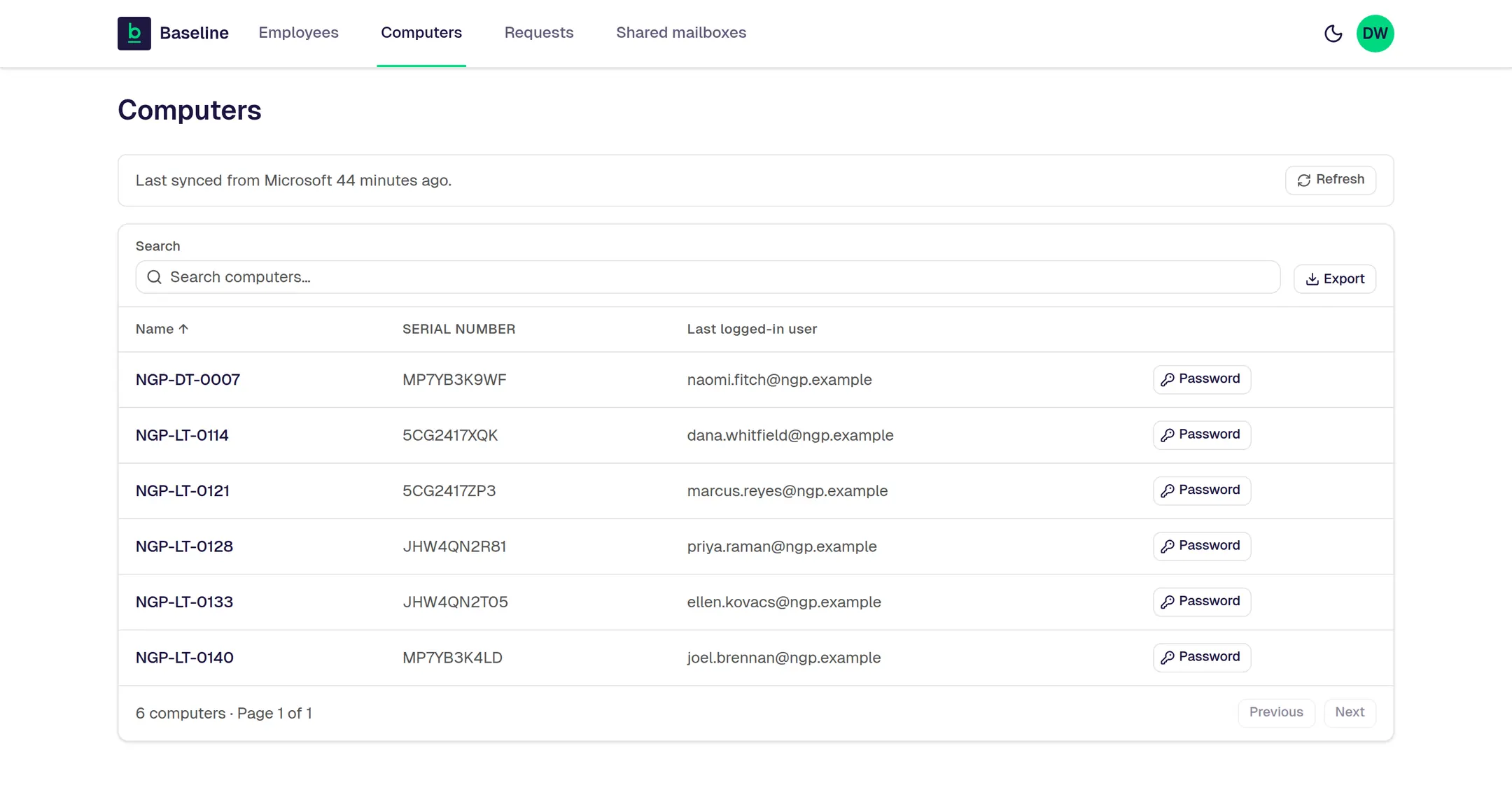
The real Computers screen. The company and people shown are made up.
Nobody can install whatever they want. People notice that for about a week. But it’s one of the two reasons help requests drop.
Part 3 · Email and files
Email, calendars, files, meetings, and chat all work together in Microsoft 365. When someone leaves, the company’s files stay put. Keep your own video call app if you want. It’s your call. Help with it usually goes to a person, because the AI only knows the Microsoft 365 setup.
Moving more onto the Baseline setup takes time. But nothing stops while you move, your email goes first, and there’s no deadline.
We build you a brand-new Microsoft 365 account while your current one keeps running. Then things move over in steps: email, contacts, and calendars first, then people, then any computers you choose. If you need data moved from your old system, it’s a flat $25 per user, plus $0.99 per GB moved.
Email gets checked for scam links, harmful attachments, and fake senders. So do links and files shared in Teams and OneDrive, where Microsoft supports it. And we watch your Microsoft 365 account for security problems around the clock.
Managers can create a group for a team and set up shared email inboxes from the portal.
Part 4 · Help
Your people ask in the Baseline app inside Teams. The AI assistant is there instantly. When something needs a person, it gets out of the way fast. Every request is tracked, so nobody explains the problem twice.
We’d rather bring in a person too early than too late. If something urgent breaks, it skips the line and you get a phone call. Help comes over Teams, text, phone, or by connecting to your computer from our side.
Help from the AI assistant is part of the monthly price. So is anything Baseline already has set steps for, whether it happens by itself or a manager starts it in the Manager Portal. A ticket a person handles is a one-time $35 for any problem: Wi-Fi, a printer, another program, or a computer. You know the price before anyone starts. Project work, meaning adding something new, is priced case by case.
When a job needs hands on site, we arrange a local contractor, and arranging one is a $35 ticket.
The Manager Portal
You shouldn’t need IT training to add an employee. Everything on this list works in the product today, and the AI assistant can walk you through any of it.
Managers get training for their role while they set up their own sign-in. Employees are shown how at the moment they use something. We call that Training Built Into the Work.
When a manager adds or removes someone, Baseline starts the change right away. Microsoft may take a few minutes to finish it.
What owners worry about
The screens on this page are the real product. The prices and the 10-minute promise are published.
Is this you?
What you get
One sign-in, as much of the Baseline setup as you want, and a person within 10 minutes when you need one, at $35 a ticket.
What goes away
Password resets on your desk, mystery laptops, and lost requests.
If nothing changes
The same problems keep coming back, and only one person knows the fixes.
What you’d miss
Time back for the work you were actually hired to do.
The next step
Five quick questions get you your Fit Check on the spot, with your price. It’s useful whether you go all in, start with just Microsoft 365 and fast help, or don’t choose Baseline.
P.S. Instant AI help any time, and a real person within 10 minutes when you need one, at $35 a ticket. And we won’t switch off anything you rely on until its replacement works and you’ve said yes.
It looks like it may be after hours for us right now. You can still fill this out. We’ll call you as soon as humanly possible, and that may be when we’re next in the office.
Leave your name and cell number. We’ll call you as soon as humanly possible. No forms, no fit check.
Keep your phone close. We’ll call you as soon as humanly possible.
It’s after hours for us, so the call may come when we’re next in the office.
Back to the page